Mac clipboard history
Keep text, links, images, and screenshots in one local shelf. Filter, copy, or drag them back into any app.
Explore Clipboard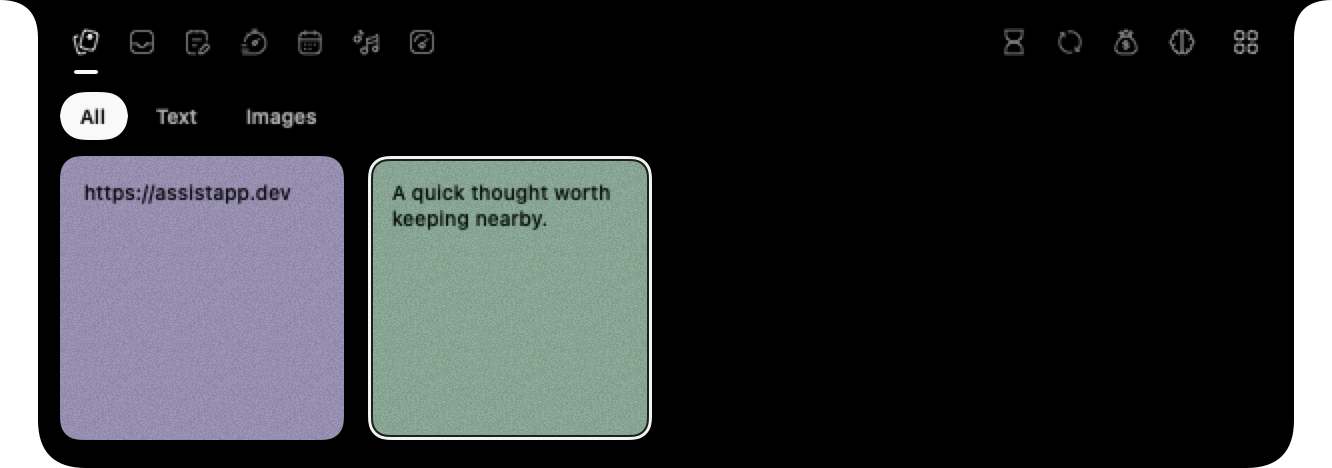
Clipboard, files, notes, focus timers, and more—right where you need them. Assist keeps your tools close and your flow uninterrupted.
macOS 14+ · Apple silicon for voice

The recording browses clipboard history and the file Shelf, writes a note, runs focus timers and hydration reminders, manages calendar events and reminders, controls music, then shows system statistics, Screen Time, image conversion, revenue, AI usage, module settings, and keyboard sounds.
Trusted by people at
 Apple
Apple Microsoft
 Meta
Meta Amazon
 TikTok(character.ai)
 Mistral AI
 DoorDash
Eleven modules, one place to find them. Enable the ones that fit your day.
Keep text, links, images, and screenshots in one local shelf. Filter, copy, or drag them back into any app.
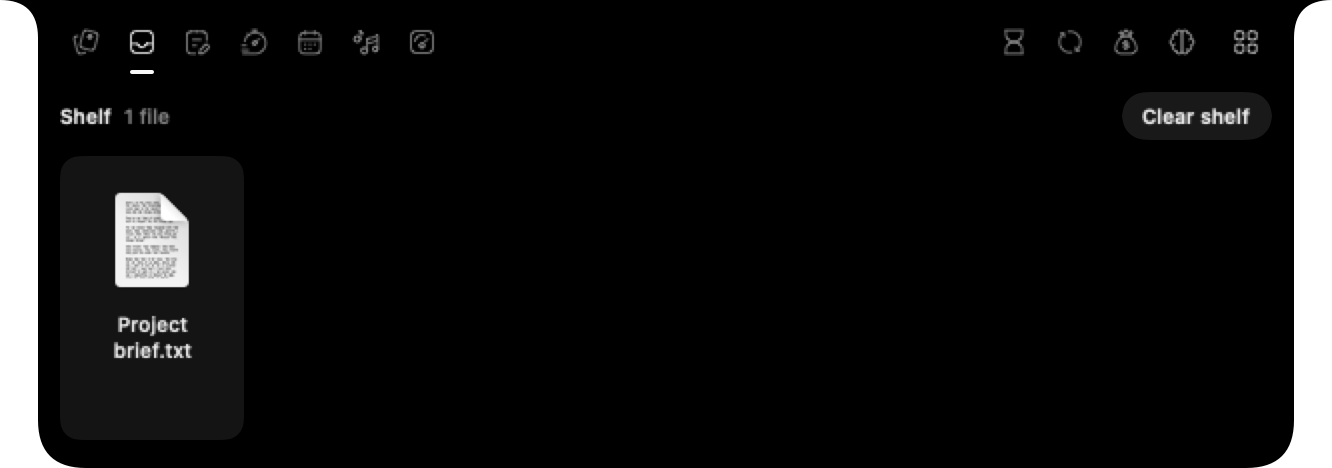
Explore ClipboardDrop files on the notch and drag them into another app without copying or moving the originals.
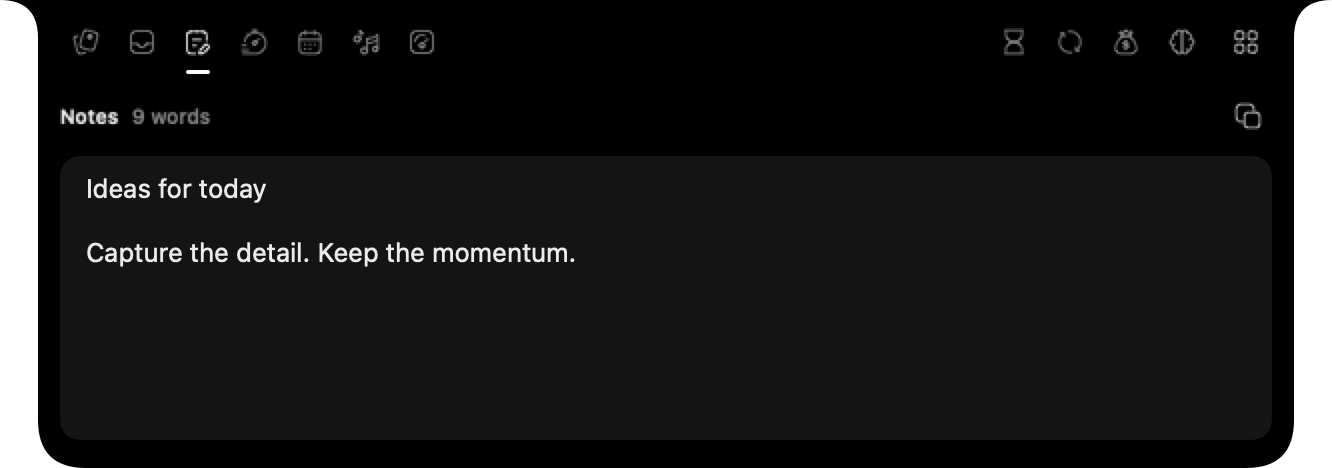
Write in a notch scratchpad that saves every edit and stays open while you type.
Run Pomodoro, countdown, and stopwatch timers. Active clocks stay visible, and hydration reminders animate in the notch.
See the hydration alert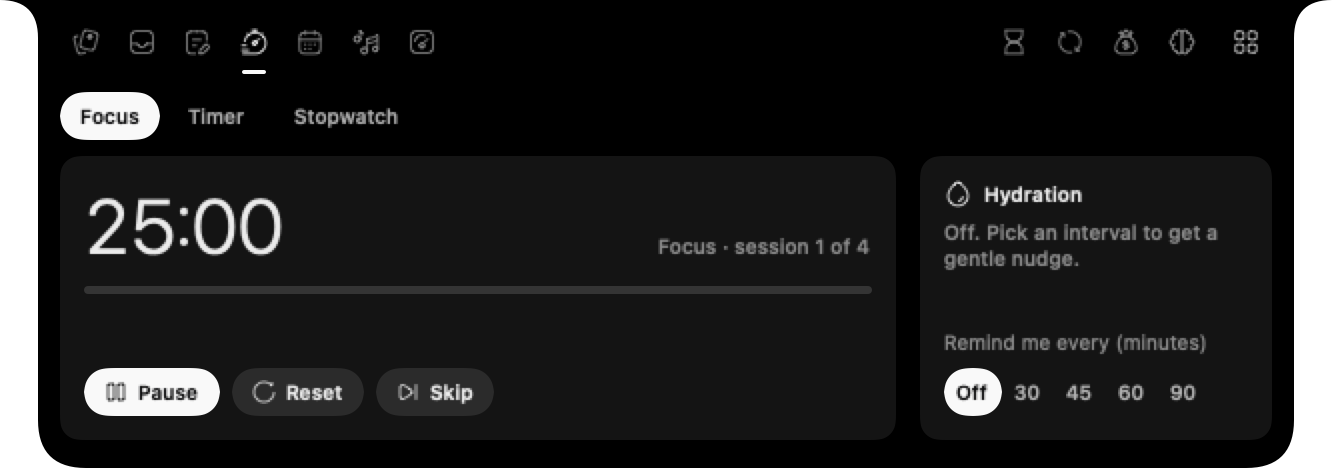
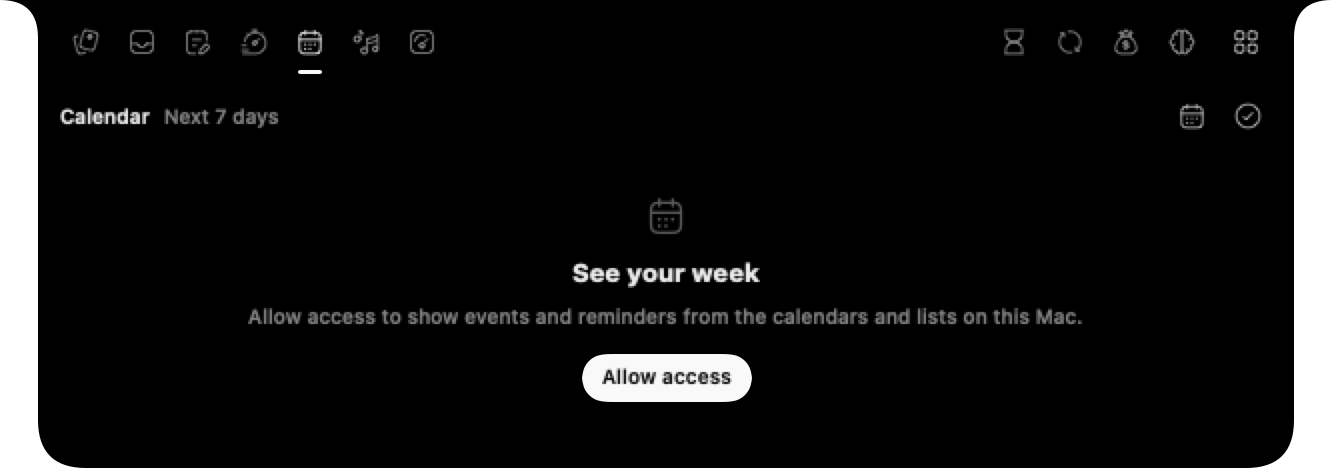
See seven days of events, add reminders, and complete them from the notch after granting macOS access.
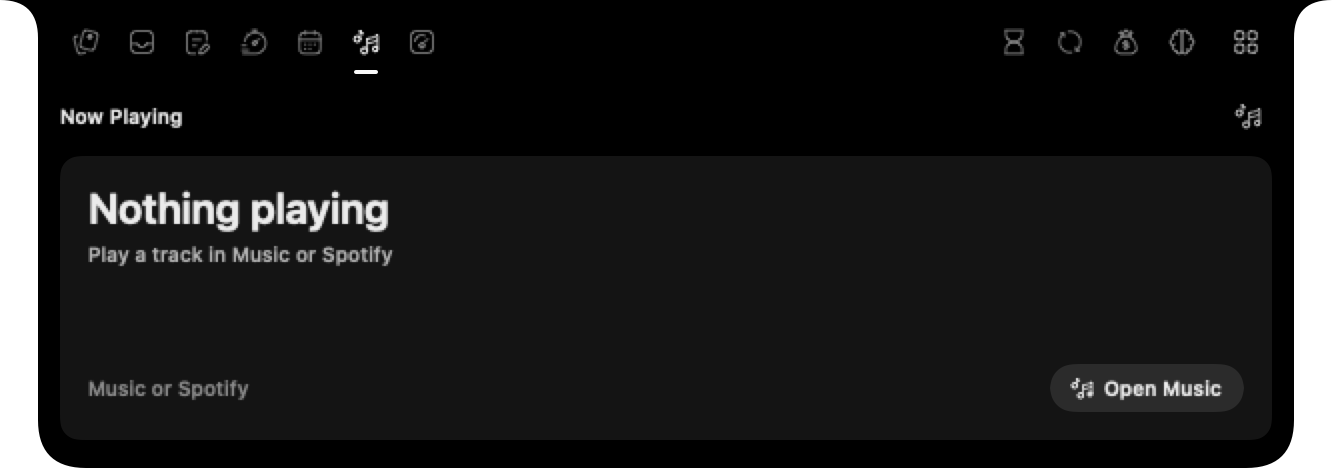
See the current Music or Spotify track and control playback with Mac media keys.
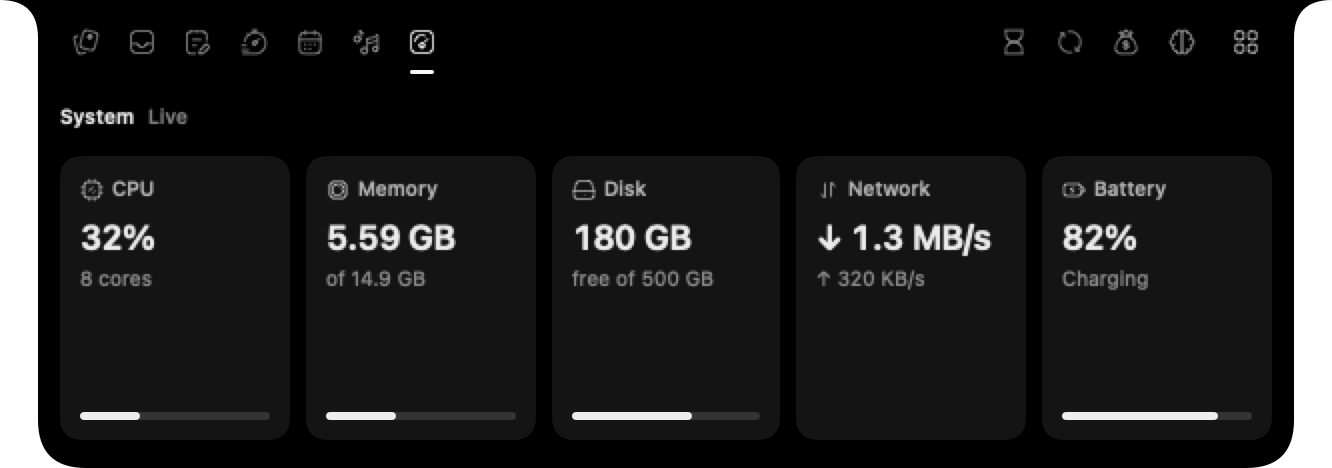
View CPU, memory, disk, network, and battery readings, sampled only while the module is open.
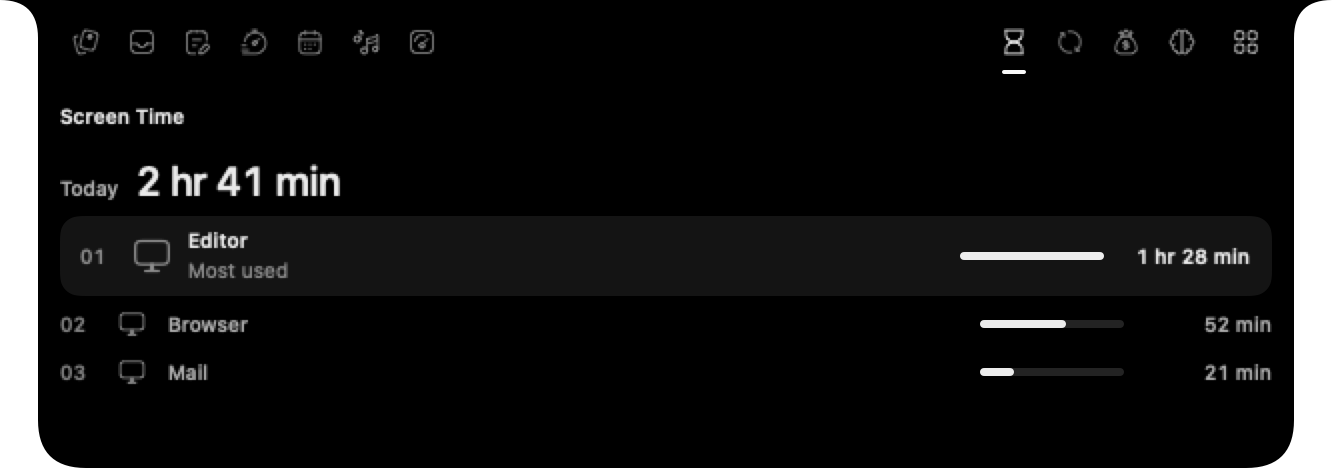
Track today’s app usage locally; counting pauses during idle time and sleep.
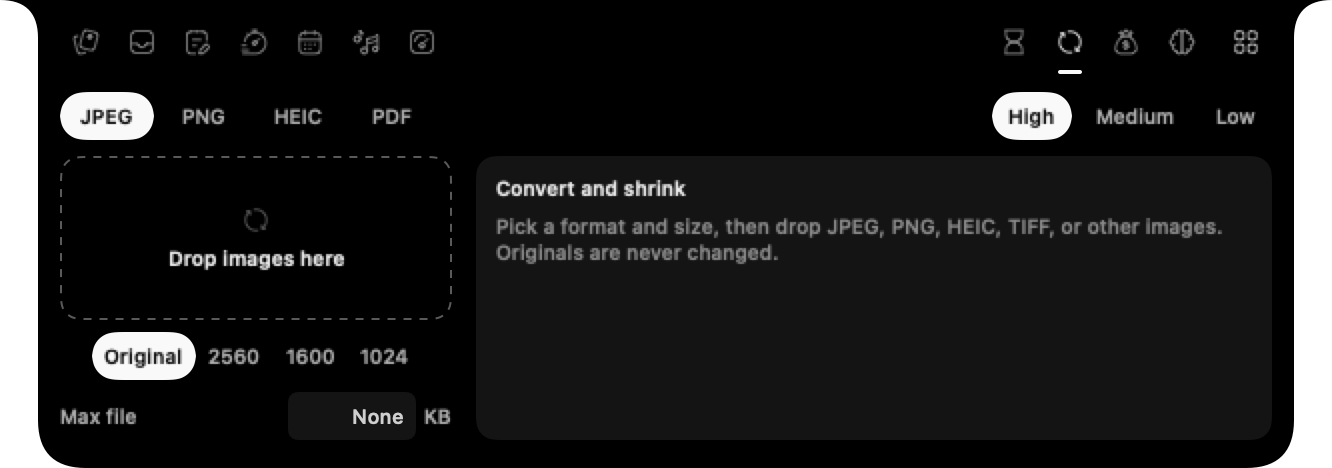
Drop images to make JPEG, PNG, HEIC, or PDF files beside the originals, with optional resizing.
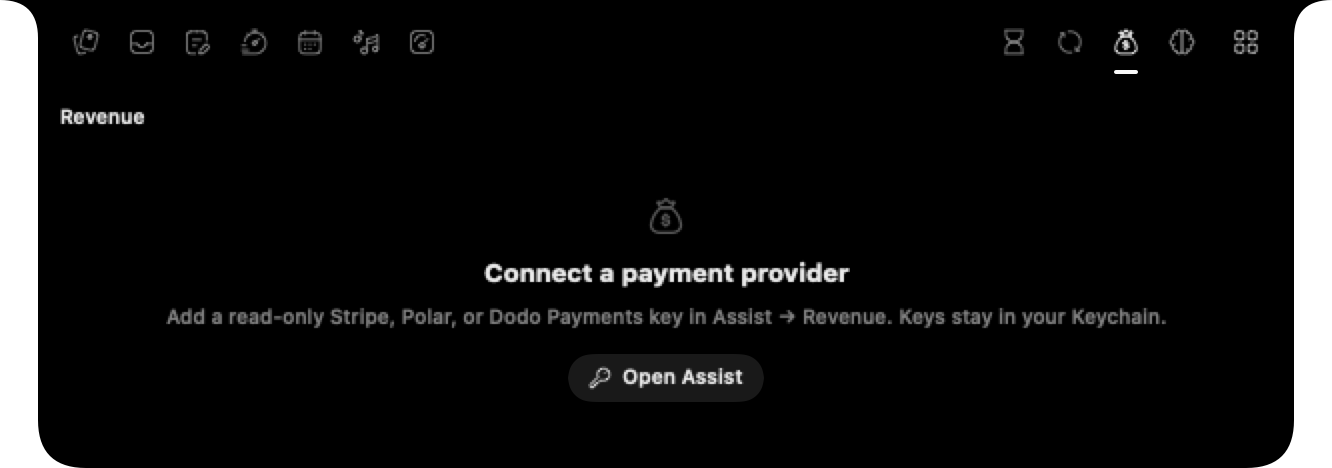
See today, seven-day, and 30-day sales from Stripe, Polar, or Dodo Payments. Keys stay in your Mac Keychain.
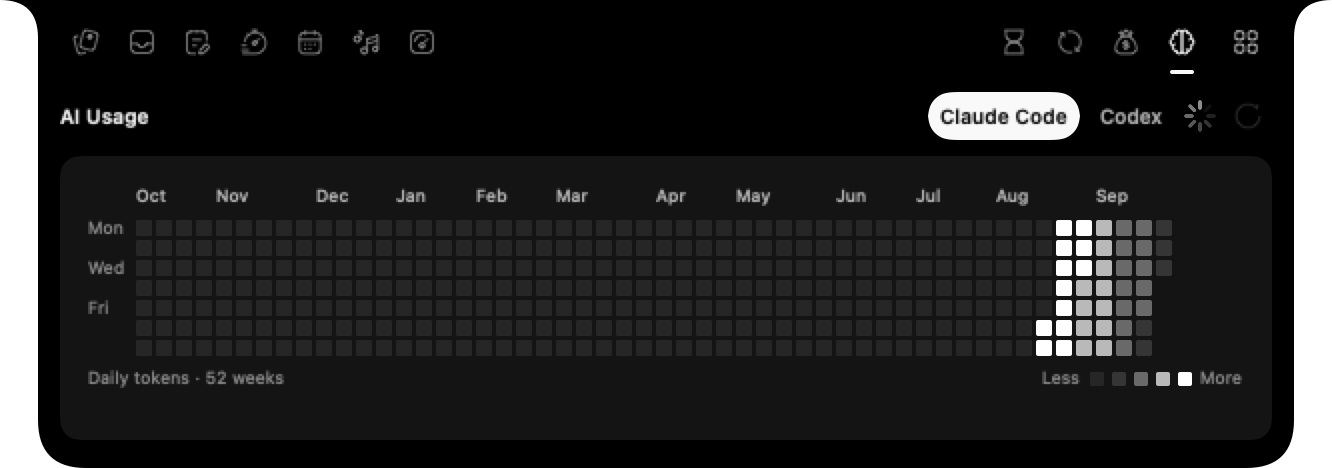
Compare local daily token grids from Claude Code and Codex logs, without account quota or reset readouts.
Screenshots and voice annotations live beside your clipboard history.
Press Control + Option for a clean screenshot of the full display. It saves immediately, and a quick editor drops under the notch in case you want to crop, blur, or frame it before using it.
Explore ScreenshotsHold Option anywhere on macOS to draw over what you see. Speak while you annotate and Assist adds a local transcript to the same capture, so the image and your intent stay together.
Explore Voice AnnotationPay once for the complete Assist experience. No subscription.
1 Mac · one-time purchase · regional pricing
Screenshots, voice annotation, notch modules, privacy, Mac requirements, and licensing.
Assist brings screenshot capture and editing, voice-powered screen annotation, clipboard history, and optional notch modules for notes, timers, calendar, media, system stats, screen time, image conversion, revenue, and AI token activity to your Mac.
Clipboard is always available. You can enable Shelf, Notes, Timers, Calendar, Media, System, Screen Time, Convert, Revenue, and AI Usage in Assist's module settings. Revenue needs your provider keys; AI Usage reads local Claude Code or Codex logs and shows daily token activity, not account quotas.
Press Control + Option to capture the full display. Assist saves the original immediately, then opens a quick editor for optional cropping, blurring, padding, rounded corners, shadows, and backdrops.
Hold Option anywhere on macOS, draw over the screen, and speak while you point things out. Release Option to save the annotated screenshot with its optional local transcript.
No. Voice transcription runs locally with WhisperKit on Apple silicon. Raw audio stays in memory only while transcription finishes and is never saved; Assist stores only the resulting transcript and its status.
Copy text, links, or images as usual and Assist keeps them in local history alongside your screenshots. Use All, Text, or Images to filter, copy an item again, drag it into another app, or delete it.
Screenshots, copied text, history, and optional transcripts are stored locally on your Mac. Assist does not OCR or interpret screenshots.
Assist requires macOS 14 Sonoma or later. Screenshots and clipboard history work on supported Macs; optional local voice transcription requires Apple silicon and a one-time Whisper model download.
Screen Recording is required for screenshots. Accessibility or Input Monitoring lets Assist detect its shortcuts. Microphone access is optional and requested only for voice transcription.
No. Assist is a one-time purchase for one Mac. The website and checkout show the available regional price. There is no recurring subscription.